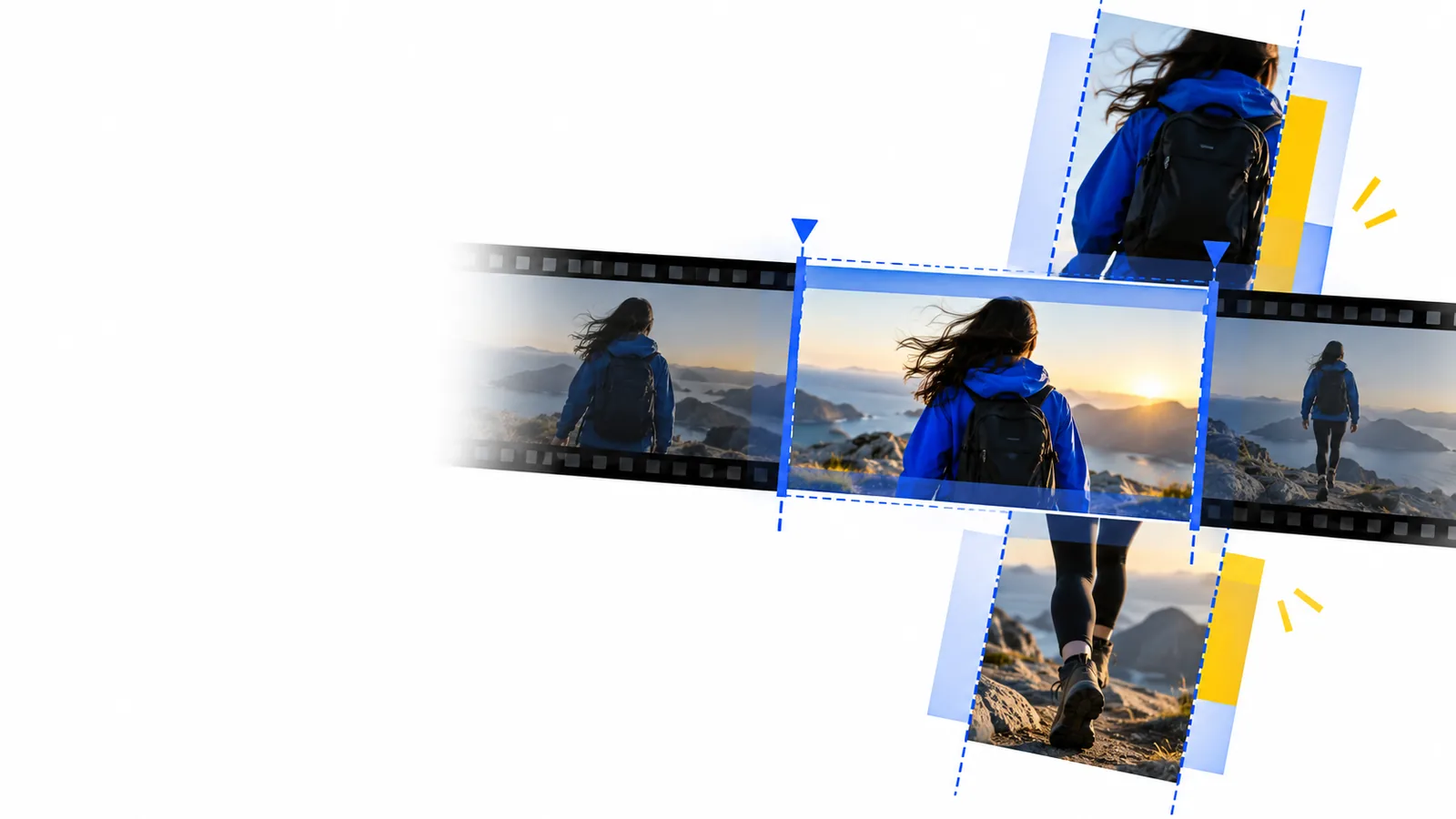
Editing workflows

Online video editor vs YouTube: where should you make changes?

The online video editor vs YouTube decision depends on when you need to edit. Prepare a new video in an editor before uploading; use YouTube Studio when an already-uploaded video needs a supported change. Neither workflow replaces the other for every revision.

Onlinevideo landing visual

Verdict first: edit before upload or revise afterward

For a new cut, start with an online video editor. For a change to a video already on your channel, check YouTube Studio first—but confirm that its available edit can accomplish what you need.

Dimension by dimension: match the task to the tool

The useful comparison is not which name sounds more capable. It is whether your source footage is still being assembled or the finished video is already on YouTube.

Channel creator

You have several raw clips and want to decide their order, shorten pauses, and review the result before publishing.

Work on the source video first. Upload the finished cut only after checking its pacing, audio, and opening seconds.

online video editor for youtube
Video owner

A published upload contains a short section you want to remove without preparing an entirely new video.

Check whether YouTube Studio offers the needed edit for that video. Review the result before treating the revision as complete.

online video editor tutorial for beginners

Desktop editor

You are comparing a browser workflow with the tools available on the computer where your files are stored.

Check upload effort, available controls, and export requirements before committing a long project to either workflow.

online video editor for pc

Creator reconsidering tools

You need a different editing workflow but do not yet know which export restrictions or features matter most.

Test a short representative clip and inspect its output before moving an entire project.

online video editor alternative free

Who each suits: follow the video's current state

Use this sequence to avoid making a small fix into a full re-edit—or discovering too late that a published-video tool cannot perform the change.

  1. 1

    Locate the editable version

    If you still have source clips and have not published, work from those clips in an online video editor. If the video is already public, identify its YouTube upload and keep your original files available; the published copy is not a substitute for a source project.

  2. 2

    Define the smallest necessary change

    Write down whether the job is a trim, a change to clip order, new footage, revised audio, or a replacement of on-screen content. Then check the controls actually available in your chosen tool. A simple published-video trim and a new sequence assembled from multiple clips are different jobs.

  3. 3

    Review before committing

    Watch the beginning, the edited transition, and the ending. For a new export, inspect the file before upload. For a YouTube Studio edit, check the preview and subsequent processing status; do not assume a saved change is immediately visible to every viewer.

Migration path: know what cannot move with the video

Changing tools does not automatically preserve a project, replace a published upload, or make every edit possible. Plan for these boundaries before switching workflows.

A new export is not the same upload

Editing your original files elsewhere produces a separate video file. Uploading that file does not automatically replace the existing YouTube video while retaining its URL, comments, and viewing history.

Workaround

If preserving the existing upload matters, check whether YouTube Studio supports the specific change. Otherwise, plan how you will direct viewers to a new upload.

Published-video controls are narrower

YouTube Studio is useful for supported changes to an uploaded video, but it is not a general-purpose timeline for rebuilding a story from new source clips.

Workaround

Return to the original footage for a structural re-edit, then export and review a new version.

Project files may not transfer

An edit saved in one application is not automatically an editable project in another. An exported video can be imported as footage, but its original cuts and layers may no longer be individually adjustable.

Workaround

Keep source media, project files, and any separate audio or graphic assets together before changing tools.

Export terms vary by tool

The word online does not establish a particular resolution, watermark policy, supported format, or account requirement for every editor.

Workaround

Check the selected tool's current export and access terms with a short test video before relying on it for a deadline.

The side-by-side editing verdict

Online video editor
YouTube Studio editor

Best starting point

Online video editor

Source footage before publication

YouTube Studio editor

An existing video on your YouTube channel

Main purpose

Online video editor

Prepare and export a finished video; exact controls depend on the editor

YouTube Studio editor

Make supported changes to an uploaded video

Adding new footage

Online video editor

Possible if the chosen editor supports importing and arranging clips

YouTube Studio editor

Not a general workflow for inserting new source clips into a published upload

Existing video URL

Online video editor

A newly uploaded export receives its own upload and URL

YouTube Studio editor

Supported edits apply to the existing upload

Working files

Online video editor

Original media and any saved project remain important for later re-edits

YouTube Studio editor

The uploaded video can receive supported edits, but is not your original source project

Review point

Online video editor

Inspect the exported file before uploading

YouTube Studio editor

Preview the edit and check its status after saving

Availability

Online video editor

Features, access, and export terms vary by service

YouTube Studio editor

Available controls and eligibility depend on YouTube's current tools and the video

Picture the difference before you switch

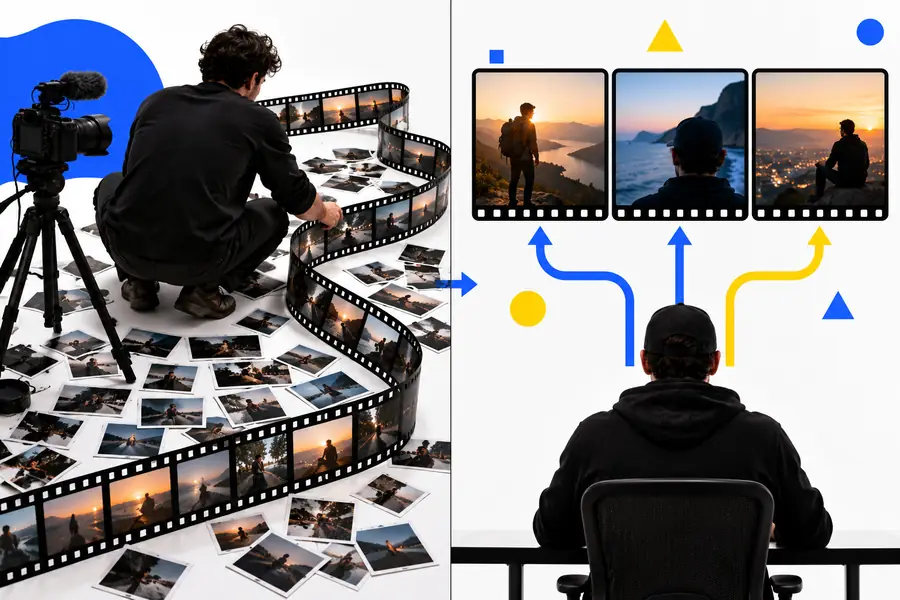
Illustration representing a comparison of editing workflows Choose the workflow
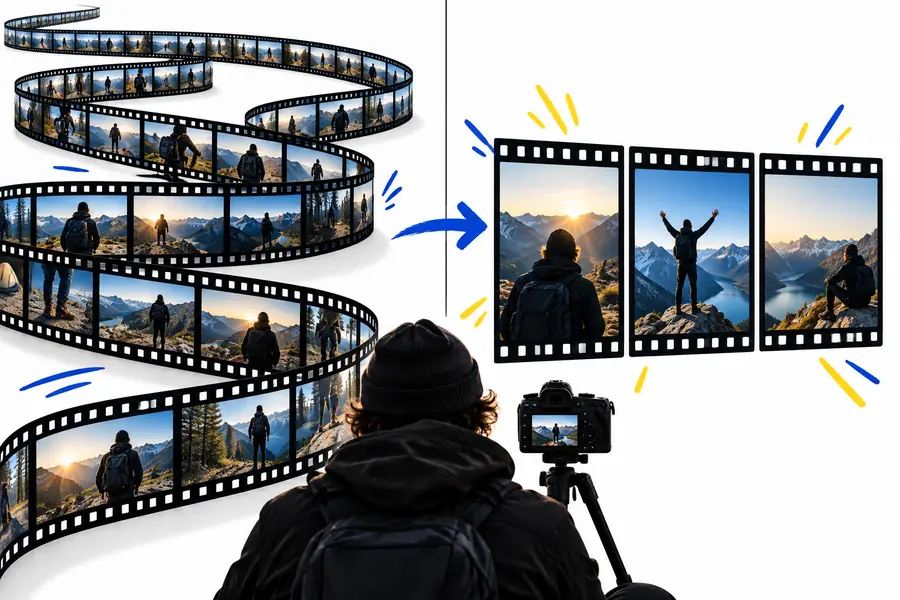
Illustration representing preparation of a video for YouTube Prepare the upload
These illustrations show the decision path, not actual editor interfaces or proof of a particular output. If a change requires new footage, return to your sources; if it concerns an existing upload, check YouTube Studio's supported edits first.

Choose the next edit, not a permanent side

Work from the version you can change

Onlinevideo can help you explore an editing path before publication. For a published YouTube video, check the channel's own editing controls first if keeping that upload matters. Confirm the available features and terms of any tool you choose before moving a full project.

Explore video editing
  • Keep original footage for substantial revisions
  • Check the edited result before publishing
  • Verify export and access terms for your chosen tool

Comparison FAQ

No. An online video editor is a category of browser-accessible tools commonly used to prepare video files, while YouTube Studio offers controls for videos on a channel. Their features vary, so compare the specific change you need rather than assuming either tool has every editing control.

Edit before uploading when you need to assemble clips, change their order, or make substantial changes to the source footage. Watch the resulting file before publishing. YouTube Studio can still be useful afterward for supported changes to the uploaded video.

Uploading a revised file normally creates a new video with its own URL; it does not overwrite the existing upload. If keeping the current video's URL and engagement matters, check whether YouTube Studio can make the particular change you need.

YouTube Studio provides editing controls for eligible uploaded videos, including certain trims and other supported adjustments. The exact options and restrictions can change or depend on the video. Preview the result and check its processing status before assuming the public version has been updated.

Use a suitable video editor and your original footage to assemble a new cut with additional clips. YouTube Studio's published-video controls are not a substitute for rebuilding a multi-clip project. The resulting export should be reviewed before you upload it as a new video.

Edit a video
Edit a video