Editing basics

An online video editor tutorial for beginners with two clear paths

This online video editor tutorial for beginners starts with a choice: improve one clip or assemble several. Pick the path that matches your footage, then make a short draft you can review before sharing.

Available options depend on the destination
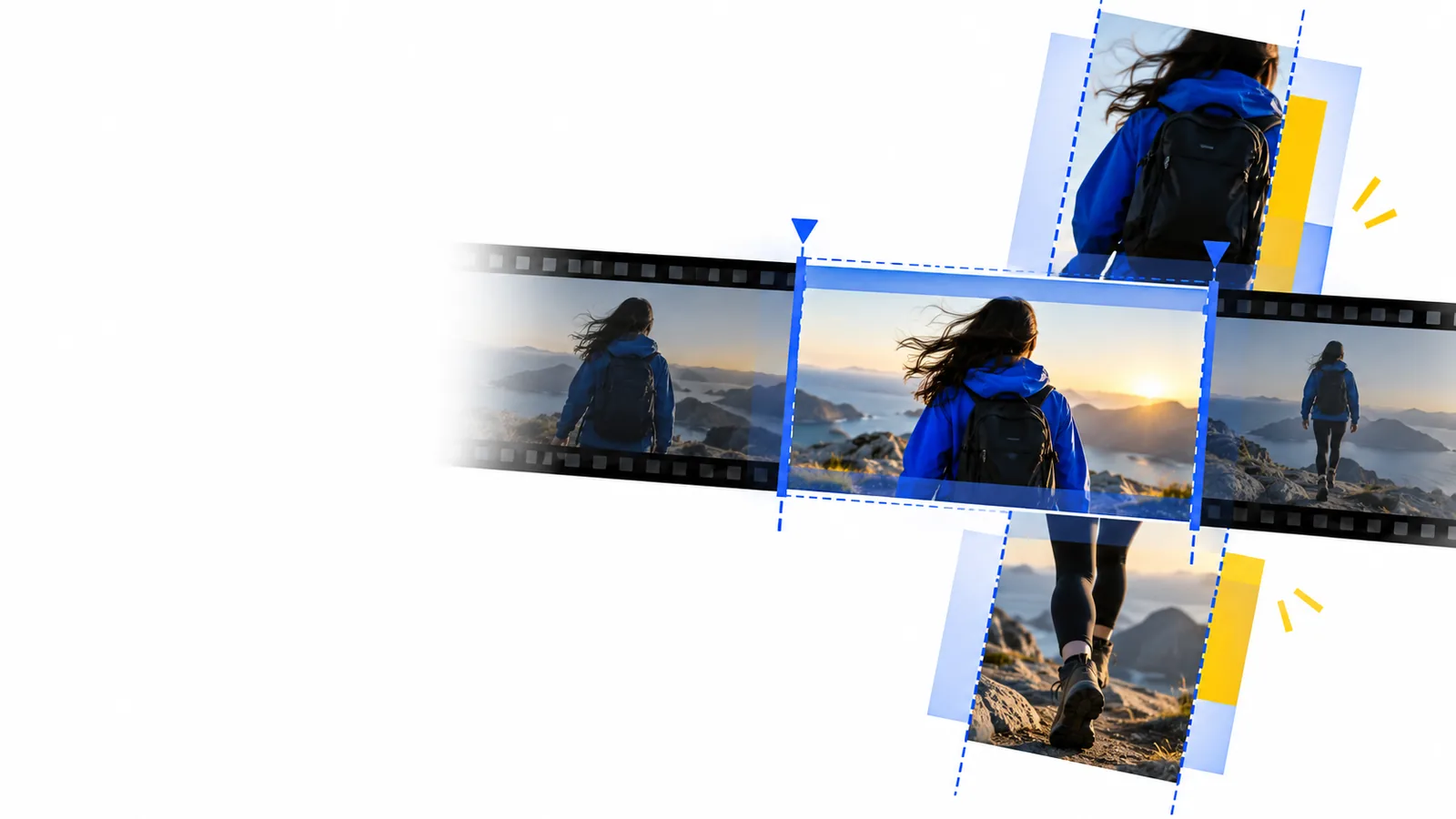
Onlinevideo landing image illustrating a video editing workspace

decide which case you are (decision table)

You do not need to learn every control in an online video editor at once. Choose the job first; it determines which decisions matter.

path A Improve one clip

Choose path A when the story is already in one recording. Your first draft needs a clear beginning and ending more than it needs effects.

First-time editor

You recorded an explanation in one take, but there is silence before you speak and after you finish. In the online video editor, identify the first and last useful frames before changing anything else.

Trim the edges, play the entire result, and keep the original recording until the exported copy passes review. For a more detailed sequence of actions, see the linked walkthrough.

how to use online video editor for free

Student presenter

Your single clip has a strong middle but a slow introduction. Note the sentence where the topic becomes clear, then test whether starting there preserves enough context.

Produce a shorter version whose opening makes sense without the discarded material. If you want to compare ways to teach this skill, use the linked tutorial guide.

best online video editor tutorial

Small-business owner

You filmed a product demonstration and need viewers to understand one feature quickly. Remove repeated actions rather than speeding up every movement.

Keep the demonstration legible and check that any spoken explanation still matches the visible action. The linked page covers planning an edit for a publishing channel.

online video editor for youtube

Family storyteller

You have one short video plus photographs that supply missing context. Decide whether the photos should introduce the moment or appear after it.

Make a simple visual sequence instead of forcing unrelated images into the middle of a continuous clip. The linked photo guide explores that format.

online video maker with photos

path B Assemble several clips

Choose path B when the main challenge is order. In an online video editor, assemble a watchable sequence before adjusting its appearance.

  1. 1

    Name the story

    Write one sentence describing what viewers should understand by the end. Select only clips that support it, and place the clearest opening first. This keeps a first project for beginners manageable even when you recorded much more footage.

  2. 2

    Build a rough sequence

    Arrange the remaining clips in story order, then play across every join. If an action repeats, remove one version; if a change of scene feels abrupt, try a different cut point before adding a transition. Save a working copy if the editor offers that option.

  3. 3

    Add only necessary context

    Consider a brief title when the subject would otherwise be unclear. Listen for changes in volume between clips and check that words remain readable against moving footage. Do not rely on a particular caption, audio, or transition control until you have confirmed it is available.

final check

The same review applies to either path. Compare what you intended with what a viewer can actually see and hear in the finished file.

One-clip edit
Multi-clip edit

Opening

One-clip edit

Does the first useful action begin promptly, without cutting off a word?

Multi-clip edit

Does the first clip establish the subject before the sequence moves on?

Ending

One-clip edit

Does the final sentence or action finish before the video stops?

Multi-clip edit

Does the last clip provide a natural conclusion rather than an arbitrary cutoff?

Continuity

One-clip edit

Did a trim remove context needed to understand the remaining clip?

Multi-clip edit

Can a new viewer follow each change of place, time, or speaker?

Audio

One-clip edit

Is speech audible throughout, including near the trimmed edges?

Multi-clip edit

Are volume changes between clips distracting on headphones and speakers?

On-screen text

One-clip edit

If you added text, can someone read it before it disappears?

Multi-clip edit

Do titles identify the sequence without covering important action?

Export review

One-clip edit

Play the saved file from beginning to end, not just the editor preview.

Multi-clip edit

Play the saved file and inspect each cut for missing frames or unintended gaps.

Know what this walkthrough cannot guarantee

An online video editor tutorial can teach a decision process; it cannot verify every control or export condition at a destination you have not opened.

It cannot promise specific editing controls

Trim, titles, captions, transitions, and audio adjustments vary by product and may vary by project type. The steps here describe editing goals, not a guaranteed set of buttons.

Workaround

Inspect the available controls before planning an edit that depends on one feature.

It cannot guarantee an export format

A preview inside an online video editor is not proof that a particular file type, resolution, or sharing method will be available.

Workaround

Check export choices early, then open the finished file in a separate player.

It cannot rescue unusable source footage

A cut can improve pacing, but it cannot restore a sentence that was never recorded or reveal detail hidden by severe blur.

Workaround

Review your source files first and, where possible, record a replacement shot before editing.

It cannot settle usage rights

Adding someone else's music, images, or clips to a project does not grant permission to publish them.

Workaround

Use material you created or have permission to use, and check the terms of any supplied assets.

Put your first edit into practice

Start with the simplest useful draft

Take one recording or a small group of clips to the destination and check its available tools. Make your rough cut first, review the result, and confirm export options before spending time on polish. Onlinevideo offers this guide to help you decide what to do; the destination determines which actions are available.

Try an edit
  • Choose the one-clip or multi-clip path.
  • Keep your source footage while you experiment.
  • Watch the exported result before sharing.

tutorial FAQ

Start with a short recording you understand well. Remove obvious dead space at the beginning and end, then watch the result all the way through. A small, complete edit teaches more than an elaborate unfinished project.

Usually, yes. Establish the order and length of the footage first so you do not spend time styling material you later remove. Add text only where it helps a viewer understand the finished sequence.

Use one clip when the recording already contains the whole story and mainly needs a cleaner start, end, or pause. Combine clips when no single recording explains the event or process by itself. For beginners, choosing one path before opening the editor reduces unnecessary decisions.

Play the exported file without stopping and ask whether the opening, sequence, sound, and ending make sense to someone who was not present when you filmed. Check the saved file rather than relying only on the preview. If viewers can follow the point without an explanation from you, it is ready for a final rights and sharing check.

No. A straightforward cut often communicates a change clearly, especially when the action and audio flow naturally. Add a transition only when it solves a specific clarity problem, and confirm that the online video editor you use provides the option you want.

Edit a video
Edit a video